 Modify a Folio:
Select Modify Folio from the Action Bar

Note: In the NEW look for Skyware, the Action Bar appears slightly different but retains the Modify Folio button.

OR
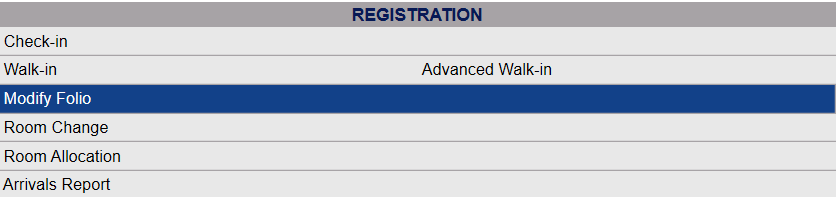
Click Modify Folio from the Registration section of the Full Menu.
To reach the Registration area:
Click the icon on the left for the Full menu.
 OR
OR 
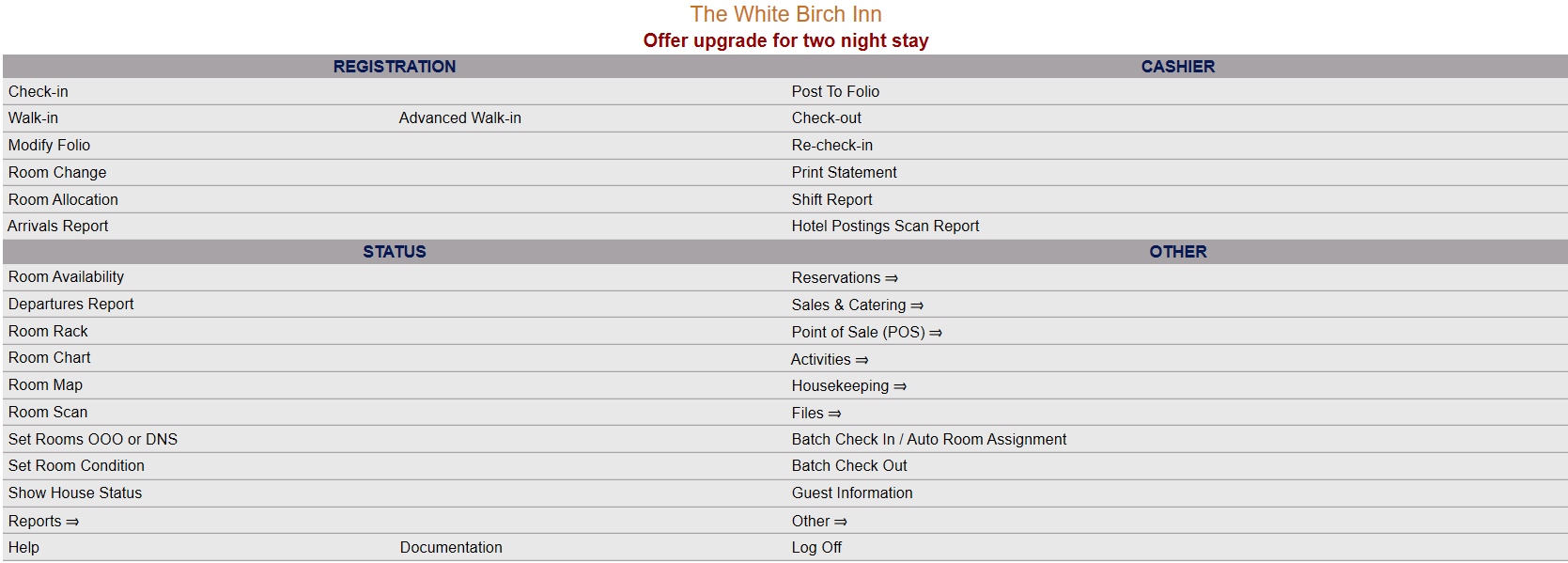
This will display the Full menu in a tabular form, with four sections, Registration, Status, Cashier and Other.
 OR
OR 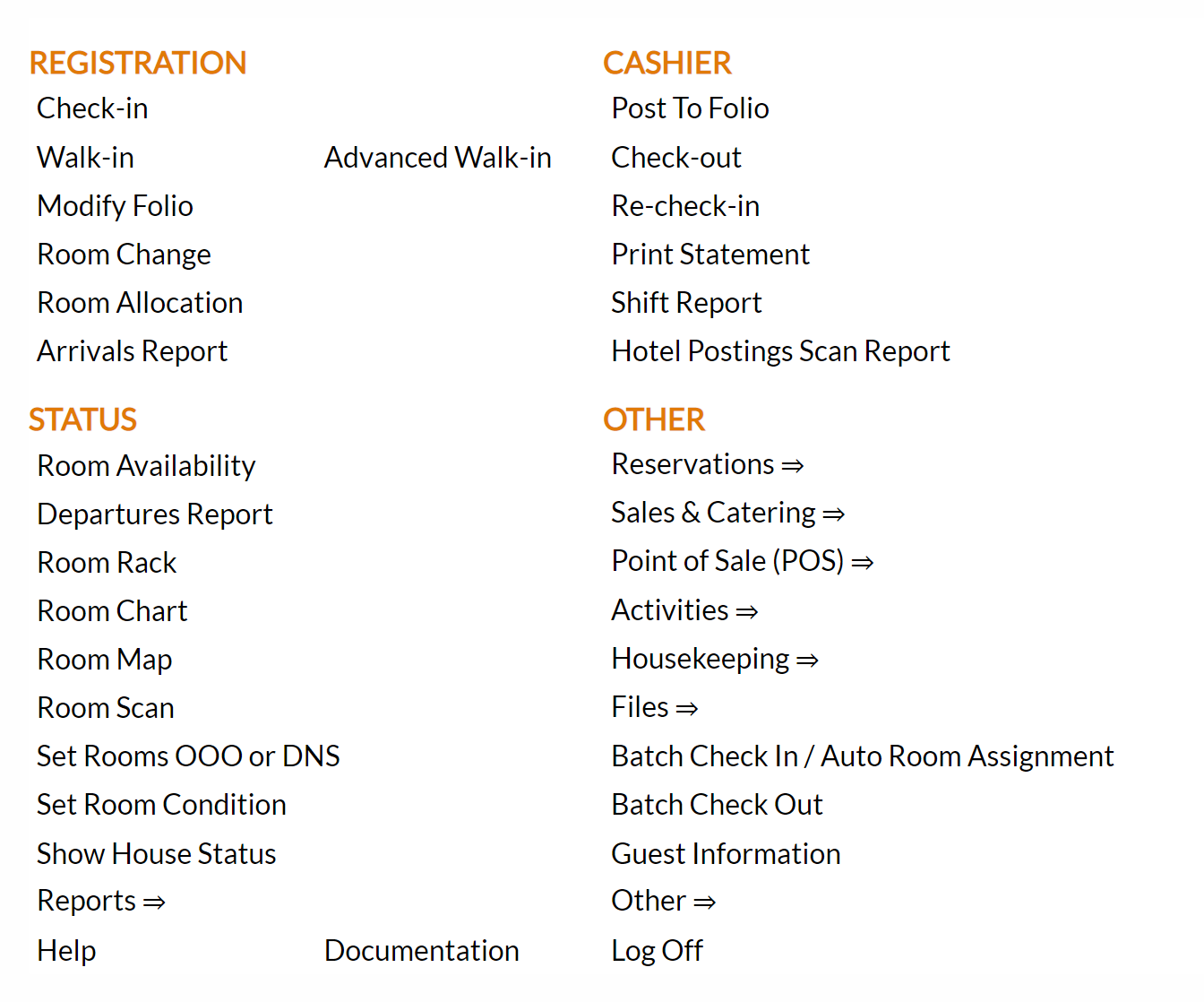
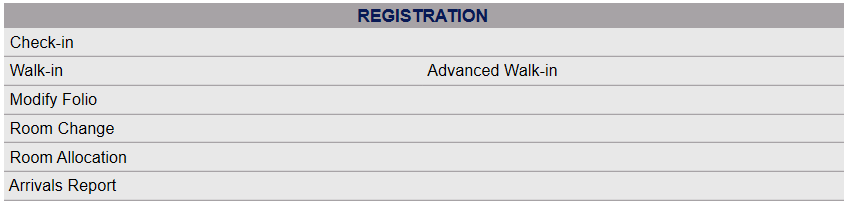
The section on the top left here is the Registration section.
 OR
OR 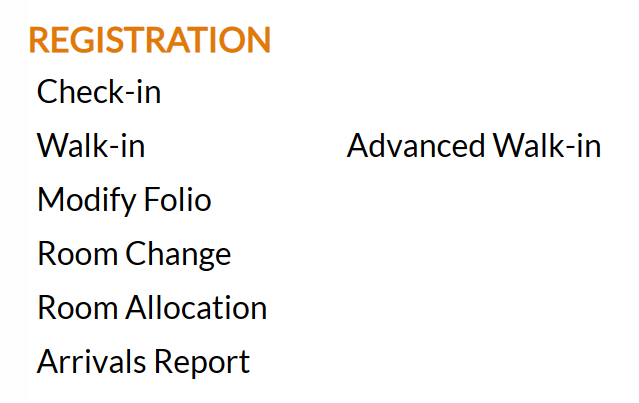
Click on Modify Folio.
 OR
OR 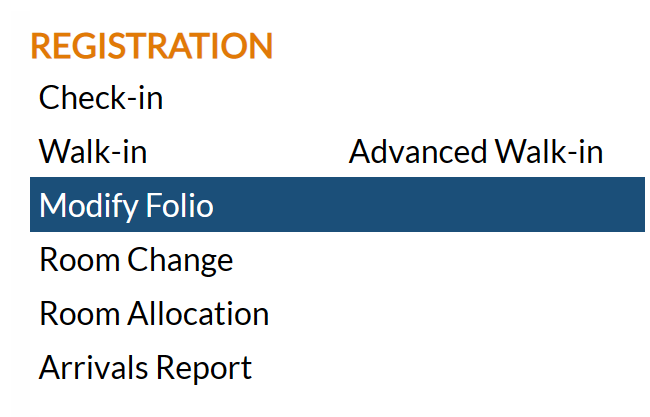
When you select Modify Folio, the Select Folio screen will open.

Currently the screen has no (Stay Information) Folios displayed. There are various options for you to select from.
Note: The default setting for the screen is to have the In-House option box checked. If the Folio you wish to search for is in this group, you need only click the <<Press to Search>> link to activate the search.
Depending on the folio you are looking for, use the checkboxes across the top to generate a list of the types of Folios indicated.
You can select from:
In-House: Folios of Guests who are currently occupying your property.
Reservations : Folios of Guests who are not currently occupying your property but have a reservation to do so.
Groups (In-House): Folios of Guests from a group booking that are currently occupying your property.
Groups (Reservations): Folios of Guests from a group booking that are not currently occupying your property but have a reservation to do so.
Cancellations: Any Folios from Reservations made that have subsequently been canceled.
History: Any Folios for stays that have already taken place.
No Shows: Any Folios from Reservations made that never took place but were not officially canceled.
Wait List: Any Folios from Reservations made that were placed on the Wait List for some reason (for example the Guest requested a King bed, or a Group rate, that was not currently available).
Note: The screen does NOT automatically update after changing any of the folio type options. A search icon appears at the end of the list of options.

This icon may be clicked to update and display the list of Folios. This allows you to select multiple options at once, rather than having the screen update every time different options are selected. You may also click the <<Press to Search>> link to activate the search.
Note: Clicking the small "All" button will automatically select ALL possible options AND display the search results (meaning EVERY folio).
Filter the Search:
If the list of folios provided is very large, or you wish to search for ONE specific guest or group, you can use the category search fields to enter information and limit the search results. See alsoSearching for Guests/Groups for more details on the search criteria you can use to narrow your search.
Categories include:
| Field Name | To restrict the results, enter the following into the corresponding field: |
|---|---|
| Confirm # | The confirmation number of the guest/group you want. |
| Last Name | Some or all of the last name of the guest/group you want. |
| First Name | Some or all of the first name of the guest/group you want. |
| Room Type | The room type of the guest/group you want. |
| Room # | The room number of the guest you want. |
| Rate Plan | The Rate Plan associated with this folio/stay. |
| Status | The current status of the guest (for example, In-House for a guest who is checking out). |
| Arrive | The arrival day, month or year, using one of the following formats: Month Day, Year, MM-DD-YYYY, M-D-YYYY, MM-DD-YY, or M-D-YY. |
| Depart | The scheduled departure day, month or year, using one of the following formats: Month Day, Year, MM-DD-YYYY, M-D-YYYY, MM-DD-YY, or M-D-Y |
| Nights | Number of nights in the stay. |
| Stay Date | The guest stay falls on this date (including arrival or departure). Enter any date within the stay to search by this criteria. |
| Current | The current balance, if any, associated with this folio/stay. |
| Projected | The projected balance, if any, associated with this folio/stay. |
| Booking Name | The name of the booking agent for the guest/group. |
| Phone | Part or all of the telephone number for the guest. |
| Attached Company | The name of the company associated with the guest/group folio. |
| City | The city from the guest's address. |
| State | The state from the guest's address. |
| Guest Type | The Guest Type associated with the guest/group. |
| Origin | The country of origin from the guest's address. |
| Key Words | Any key words associated with the guest/group. |
| Guest ID | The ID automatically assigned to the guest/group. |
| Stay ID |
The ID automatically assigned to the folio/stay. |
| BEO # | The BEO number assigned to the group. This field is only available on the group search screen. |
| Function ID | The ID assigned to a function associated with the group. This field is only available on the group search screen. |
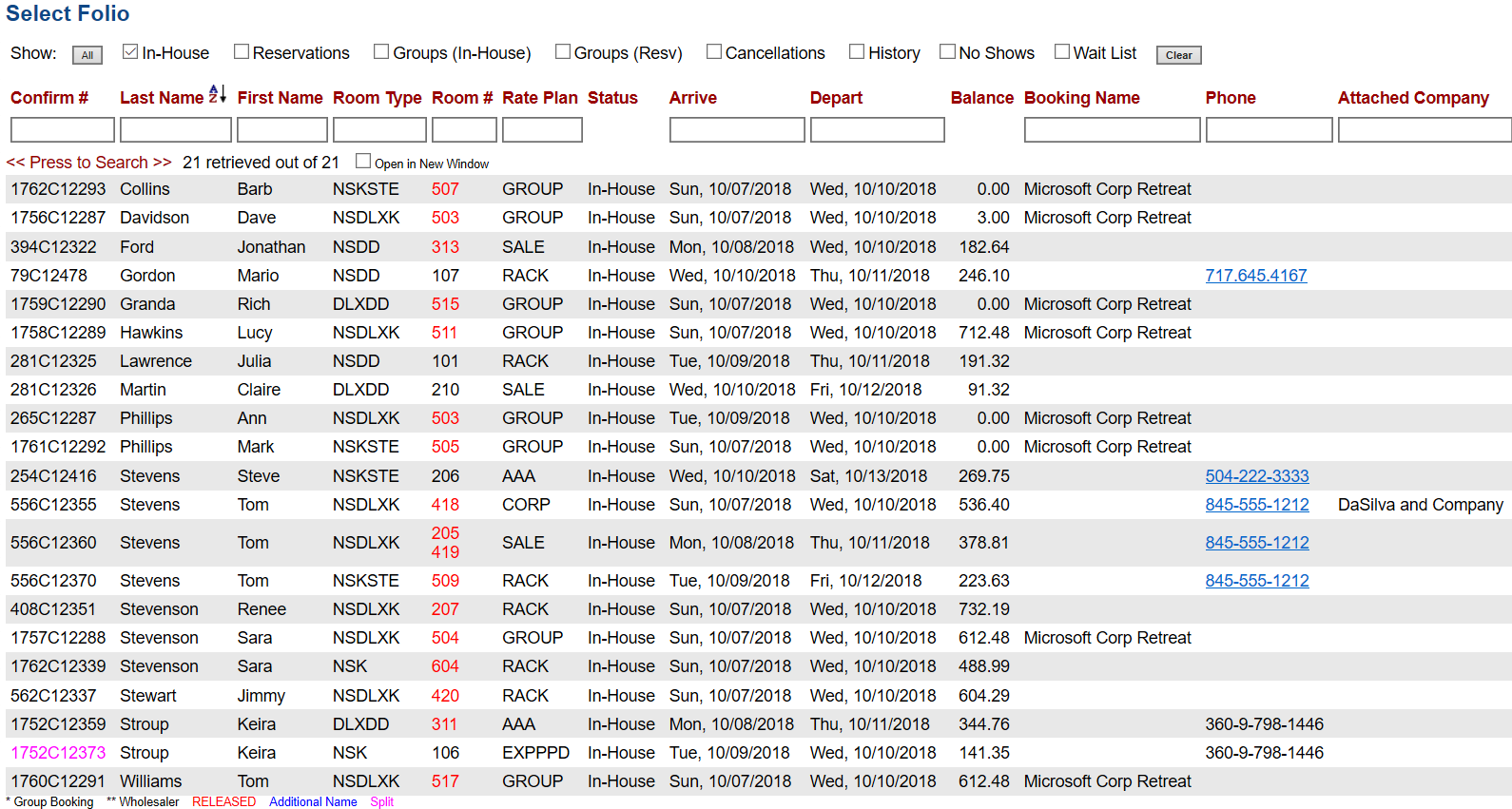
When ready, click the <<Press to Search>> link to generate the filtered list. This will display the results below the <<Press to Search>> link, with a list of how many Folios were retrieved, and the option to display the list in a new window.
 OR
OR 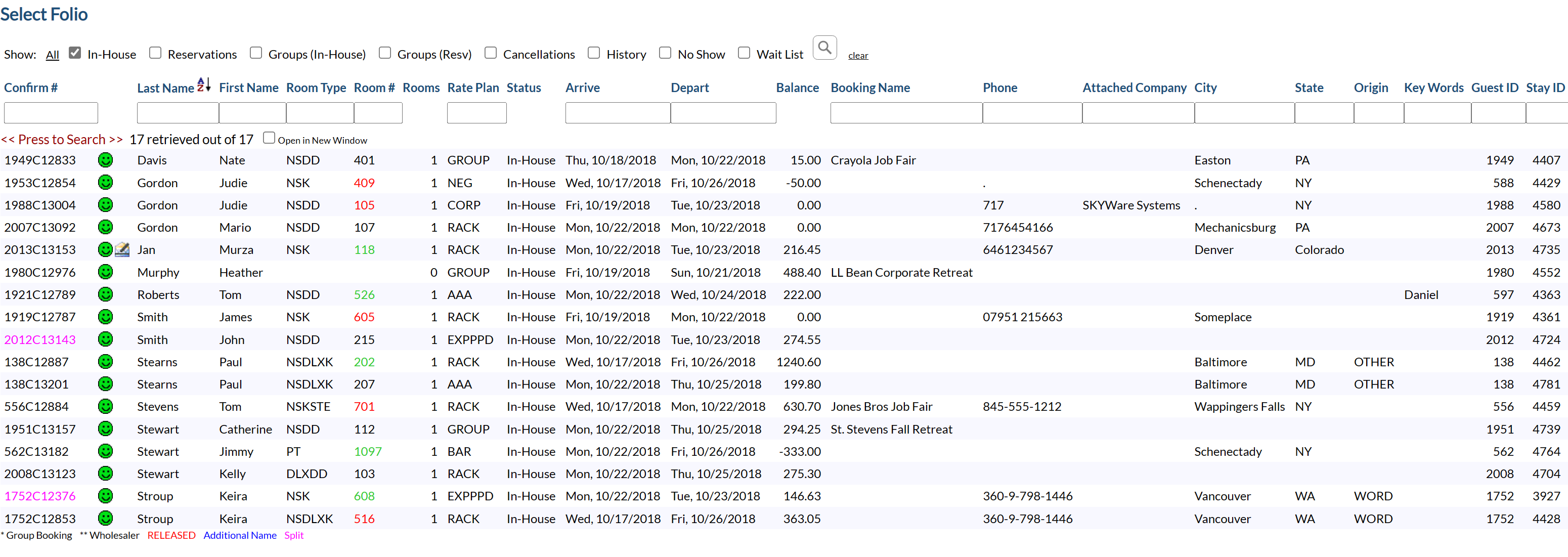
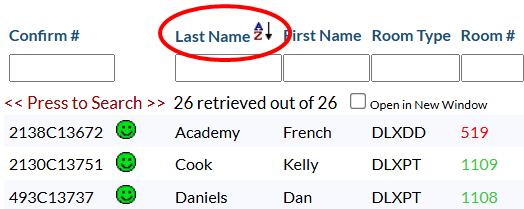
You may organize the search results alphabetically or numerically by field category entry, by clicking on the field category TITLE (not the information entry field below it). The current sort column will be indicated by the presence of the A-Z symbol.
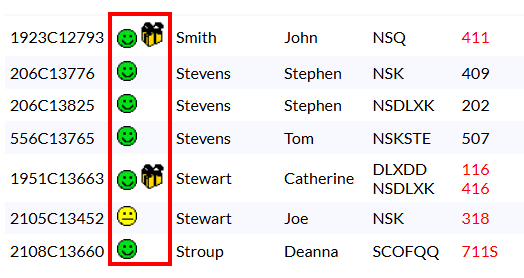
Note: Information is also shown on the guest status (such as number of associated stays, shown by stars; Gold for 5 or greater stays and silver for 1-4 stays), whether the stay has a package associated with it, and if an electronic guest signature is on file (see Tool Bar Icons for more details). However the results may not be searched by these.
From the search results, click the row of the Folio you want to view or modify.
The selected Folio will open.
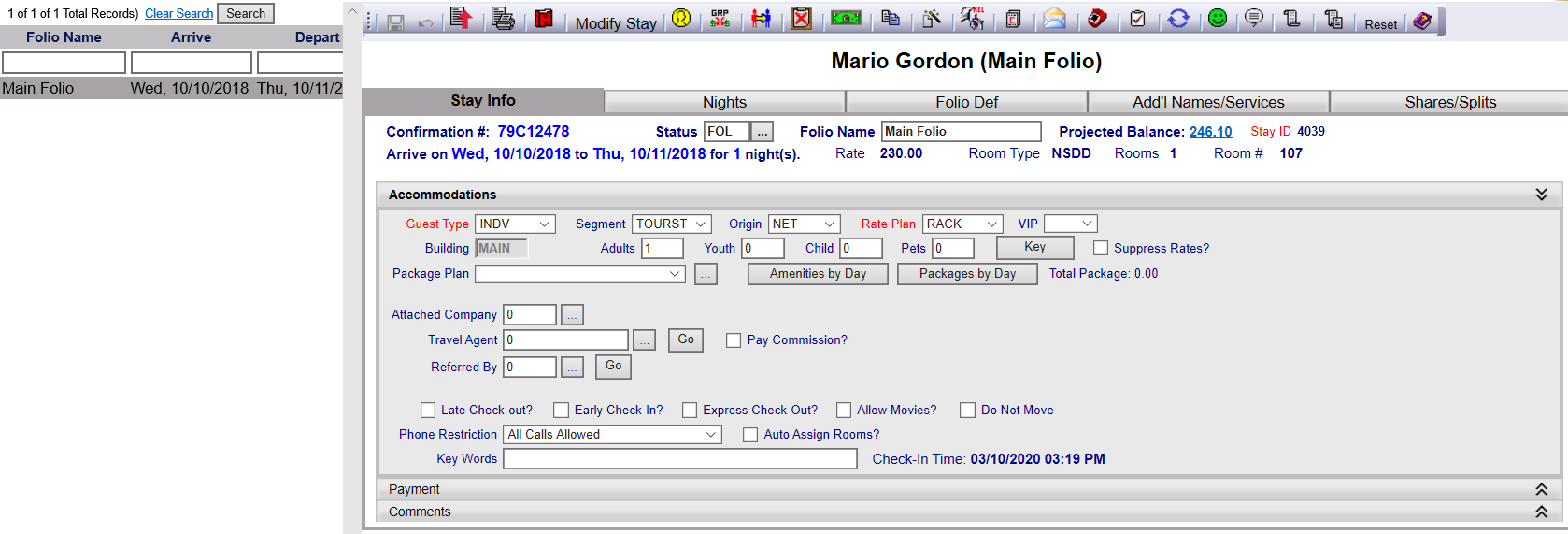
When a guest or group Folio is open, the default tab that appears is the Stay Info tab. This tab allows you to manage basic guest information. There is a toolbar across the top of the screen containing command buttons that provide access to the available functionality. Hovering the mouse over each button will show a tool-tip containing the name of that button.
The tool bar icons across the top of the Folio screen provide the following functionality:
- Upload a File,
- Print or Email custom Documents,
- Access or Modify the Guest Record,
- Modify the Stay through the Wizard,
- View Postings,
- Attach /Detach Guest to a Group,
- Transfer the Reservation/Stay to another guest,
- Cancel the Reservation,
- Modify the Rates,
- Copy a Reservation,
- View or modify Special Requests or Preferences,
- Print a Registration Card,
- Print a Confirmation Card,
- Email a Confirmation Card,
- Show any Sales Call records,
- Show any Tasks requested by the Guest,
- Generate new occurrences of Stays on a regular basis (weekly, monthly repeats),
- Show any Complaints,
- Send Custom texts to the Guest,
- View the Activity/Transaction log,
- Reset the Folio.
In addition, you can use the different tabs on the Folio screen to view or access the following:
From the selected Folio you can click on the Modify Stay button in the toolbar of the screen to go to the Reservation page where you can modify the stay records. Also see Check-In with Reservation for further information. If you need it, use the Wizard to walk through the reservation and modify the stay record (including dates, rate type, packages, room type, room numbers, guest, guarantee, and deposit information). See Advanced Check-In (Check-In Wizard).
When the changes have been made, click Finish to apply them to the selected reservation. The Stay Information screen (Folio) reappears with the updated information.